
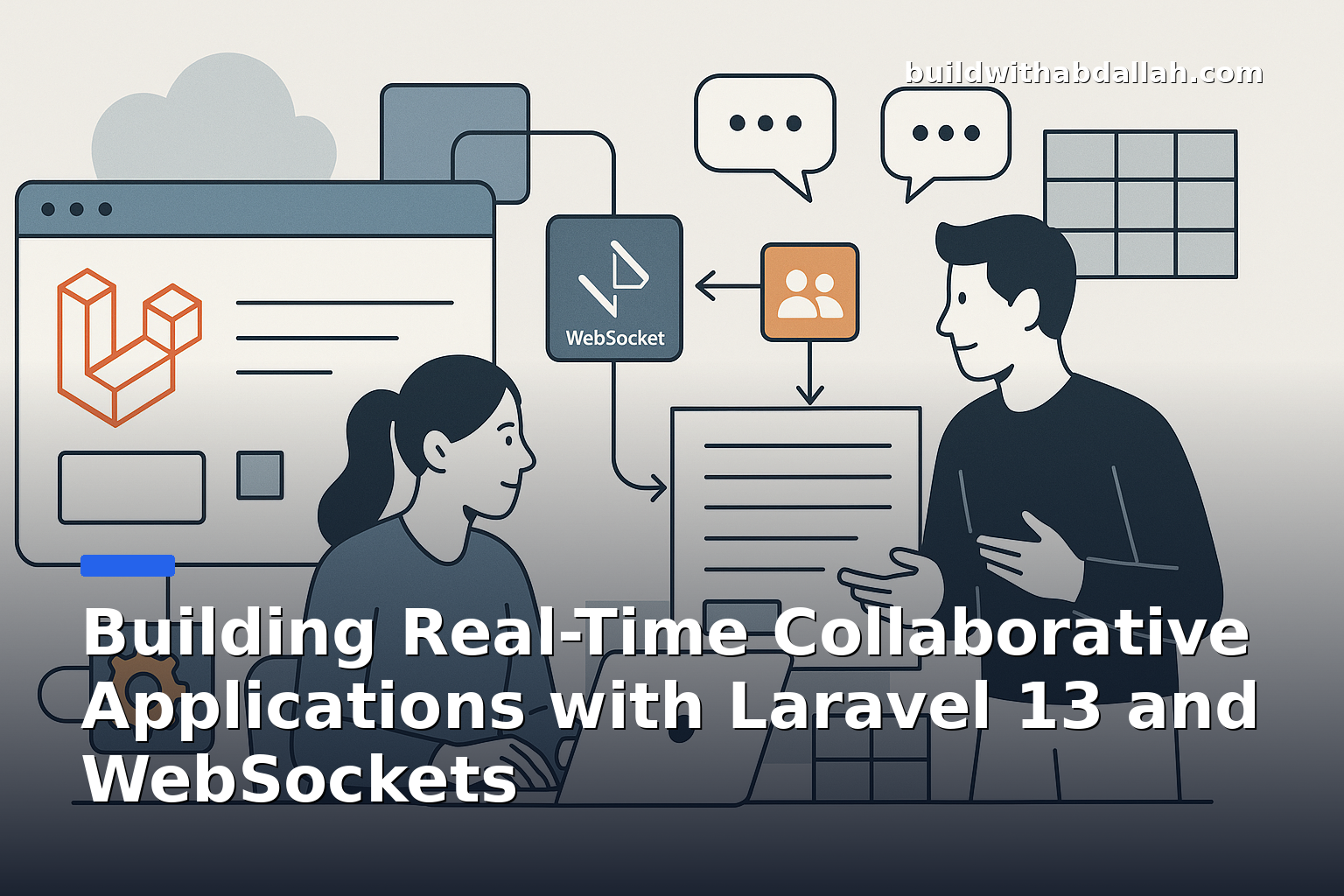
Building Real-Time Collaborative Applications with Laravel 13 and WebSockets
What You'll Build
In this tutorial, you'll learn how to build a real-time collaborative application using Laravel 13 and WebSockets. Imagine a simple collaborative text editor where multiple users can edit a document simultaneously and see each other's changes in real-time. This application will demonstrate how to broadcast updates to all connected clients instantly, providing a seamless collaborative experience.
Why This Matters
Real-time collaborative applications are becoming increasingly important in today's interconnected world. They allow multiple users to work together effectively, regardless of their physical location. These applications are particularly useful in scenarios like:
- Collaborative editing tools: Applications like Google Docs where multiple users can edit documents simultaneously.
- Real-time dashboards: For monitoring live data updates.
- Chat applications: Where users need to see messages as soon as they are sent.
By using WebSockets, you can push updates to clients instantly, reducing the need for constant polling and improving user experience. Developers, businesses, and end-users all benefit from the efficiency and responsiveness of real-time applications.
Architecture Overview
The architecture of our real-time collaborative application can be summarized as follows:
- Client: A web application built with HTML, CSS, and JavaScript that connects to the server via WebSockets.
- Server: A Laravel 13 application that handles incoming WebSocket connections, processes events, and broadcasts updates to connected clients.
- WebSocket Server: A service that maintains persistent connections with clients and facilitates two-way communication.
Here's a simple text diagram to illustrate the architecture:
+-----------------+       +------------------+       +---------------------+
|   Client 1      | <---> | WebSocket Server | <---> | Laravel Application |
+-----------------+       +------------------+       +---------------------+
|   Client 2      |       |                  |       |                     |
+-----------------+       +------------------+       +---------------------+
Step-by-Step Implementation
Let's dive into the step-by-step implementation. We'll start by setting up a basic Laravel project and then integrate WebSockets for real-time communication.
Step 1: Set Up a New Laravel Project
First, ensure you have Composer installed on your machine. Then, create a new Laravel project by running the following command:
composer create-project --prefer-dist laravel/laravel collaborative-app
Navigate into the project directory:
cd collaborative-app
Open the project in your preferred code editor. You should see the standard Laravel directory structure.
Step 2: Install Laravel WebSockets Package
To enable WebSockets in our Laravel application, we'll use the beyondcode/laravel-websockets package. Install it via Composer:
composer require beyondcode/laravel-websockets
Once installed, publish the WebSockets configuration file:
php artisan vendor:publish --provider="BeyondCode\LaravelWebSockets\WebSocketsServiceProvider" --tag="migrations"
php artisan vendor:publish --provider="BeyondCode\LaravelWebSockets\WebSocketsServiceProvider" --tag="config"
Run the migrations to create the necessary database tables:
php artisan migrate
Step 3: Configure WebSockets
Next, configure the WebSockets package by editing the config/websockets.php file. Ensure that the apps array includes an entry for your application:
'apps' => [
    [
        'id' => env('PUSHER_APP_ID'),
        'name' => env('APP_NAME'),
        'key' => env('PUSHER_APP_KEY'),
        'secret' => env('PUSHER_APP_SECRET'),
        'path' => '',
        'capacity' => null,
        'enable_client_messages' => false,
        'enable_statistics' => true,
    ],
],
Update your .env file with the necessary Pusher credentials:
PUSHER_APP_ID=your-app-id
PUSHER_APP_KEY=your-app-key
PUSHER_APP_SECRET=your-app-secret
PUSHER_APP_CLUSTER=mt1
These credentials are placeholders; you'll need to replace them with actual values from your Pusher account.
Now, update the broadcasting.php configuration file to use the pusher driver:
'default' => env('BROADCAST_DRIVER', 'pusher'),
Finally, start the WebSocket server:
php artisan websockets:serve
At this point, your Laravel application is configured to use WebSockets. In the next steps, we'll build the front-end client and implement real-time collaboration features.
Step 4: Set Up Frontend for Real-Time Collaboration
Now that our backend is ready, let's set up the frontend to make use of WebSockets for real-time updates.
First, install Laravel Mix to compile our frontend assets. If you haven't already, ensure Node.js and npm are installed. Then, install the necessary packages:
npm install
Next, install laravel-echo and pusher-js:
npm install --save laravel-echo pusher-js
In resources/js/bootstrap.js, configure Laravel Echo to connect to our WebSocket server:
import Echo from 'laravel-echo';

window.Pusher = require('pusher-js');

window.Echo = new Echo({
    broadcaster: 'pusher',
    key: process.env.MIX_PUSHER_APP_KEY,
    cluster: process.env.MIX_PUSHER_APP_CLUSTER,
    wsHost: window.location.hostname,
    wsPort: 6001,
    forceTLS: false,
    disableStats: true,
});
Next, create a simple HTML page for our collaborative editor. Open resources/views/welcome.blade.php and replace its contents with:
<!DOCTYPE html>
<html>
<head>
    <title>Collaborative Editor</title>
    <meta name="csrf-token" content="{{ csrf_token() }}">
</head>
<body>
    <textarea id="editor" cols="30" rows="10"></textarea>
    <script src="{{ mix('/js/app.js') }}"></script>
    <script>
        const editor = document.getElementById('editor');

        window.Echo.channel('editor')
            .listen('TextUpdated', (e) => {
                editor.value = e.text;
            });

        editor.addEventListener('input', () => {
            axios.post('/update-text', {
                text: editor.value
            });
        });
    </script>
</body>
</html>
Step 5: Implement Backend Event Broadcasting
Let's create an event that will be broadcasted whenever the text in the editor is updated. Run the following Artisan command:
php artisan make:event TextUpdated
Open app/Events/TextUpdated.php and update it:
namespace App\Events;

use Illuminate\Broadcasting\Channel;
use Illuminate\Contracts\Broadcasting\ShouldBroadcast;
use Illuminate\Queue\SerializesModels;

class TextUpdated implements ShouldBroadcast
{
    use SerializesModels;

    public $text;

    public function __construct($text)
    {
        $this->text = $text;
    }

    public function broadcastOn()
    {
        return new Channel('editor');
    }
}
Now, add a route and controller method to handle the text update. In routes/web.php:
use App\Events\TextUpdated;
use Illuminate\Support\Facades\Route;

Route::post('/update-text', function (Illuminate\Http\Request $request) {
    event(new TextUpdated($request->input('text')));
    return response()->json(['success' => true]);
});
Common Mistakes
-
Environment Configuration: Ensure your
.envfile is correctly configured with the Pusher credentials and that the WebSocket server is running on the correct host and port. -
WebSocket Server Not Running: Always start the WebSocket server with
php artisan websockets:servebefore testing the application. -
Queue Workers Not Running: If you're using queues for broadcasting, ensure your queue workers are running. Use
php artisan queue:workto start them.
How I Would Use This
This setup is ideal for applications that require real-time collaboration, such as collaborative editing tools, live dashboards, or chat applications. I would avoid using it for applications with low real-time interaction needs due to the additional complexity and resource usage.
Production Considerations: In production, consider using a dedicated WebSocket server or a service like Pusher to handle connections more efficiently. Monitor the server's load and scale as needed.
Lessons Learned
- Tradeoffs: Implementing WebSockets introduces complexity but significantly enhances user experience for real-time applications.
- Unexpected Issues: Network latency and connection drops can affect real-time performance. Testing under various conditions is crucial.
- Real-World Considerations: Ensure proper authentication and authorization for channels to prevent unauthorized access.
Next Steps
- Security: Learn about securing WebSocket connections and implementing authentication.
- Scalability: Explore options for scaling WebSocket servers for high-traffic applications.
- Further Reading: Look into integrating WebSockets with other frontend frameworks like React or Vue.js.