
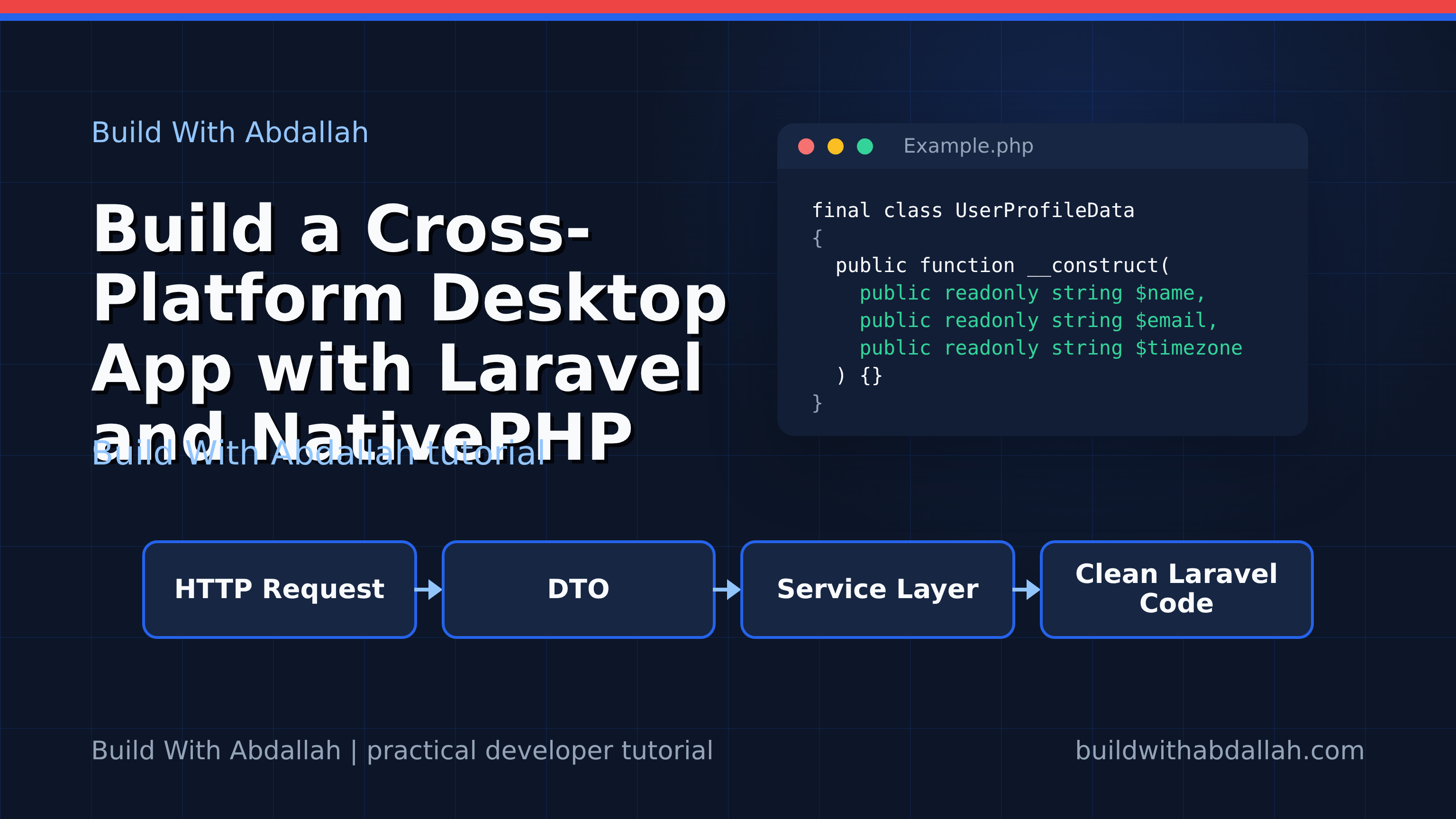
Build a Cross-Platform Desktop App with Laravel and NativePHP
In this tutorial, we'll explore how to build a cross-platform desktop application using Laravel and NativePHP. Laravel is a robust PHP framework known for its elegant syntax and powerful features, while NativePHP allows you to create desktop applications using web technologies. This combination makes it easier than ever to leverage your web development skills to create desktop applications that run on Windows, macOS, and Linux.
Prerequisites
Before we start building our application, make sure you have the following installed on your system:
-
PHP (>= 8.0)
Install PHP using Homebrew on macOS:
brew install phpOn Ubuntu, you can use:
sudo apt update sudo apt install php -
Composer
Install Composer globally by running:
php -r "copy('https://getcomposer.org/installer', 'composer-setup.php');" php composer-setup.php php -r "unlink('composer-setup.php');" sudo mv composer.phar /usr/local/bin/composer -
Node.js (>= 14.x) and npm
Install Node.js and npm using Homebrew on macOS:
brew install nodeOn Ubuntu, use:
sudo apt update sudo apt install nodejs npm -
NativePHP
You can install NativePHP globally via Composer:
composer global require nativephp/cliMake sure to add Composer's global bin directory to your system's PATH.
-
Git
Install Git using Homebrew on macOS:
brew install gitOn Ubuntu, use:
sudo apt update
sudo apt install git
Project Structure
After setting up your environment, the project structure will look like this:
my-desktop-app/
├── app/
├── bootstrap/
├── config/
├── database/
├── public/
├── resources/
│   ├── js/
│   ├── sass/
│   └── views/
├── routes/
│   ├── api.php
│   ├── channels.php
│   ├── console.php
│   └── web.php
├── storage/
├── tests/
├── vendor/
├── .env
├── artisan
├── composer.json
├── package.json
└── webpack.mix.js
Step 1: Create a New Laravel Project
First, we need to create a new Laravel project. Run the following command to create a new Laravel application named my-desktop-app:
composer create-project --prefer-dist laravel/laravel my-desktop-app
This command will download and install the latest version of Laravel into a directory named my-desktop-app.
Explanation
The composer create-project command is used to create a new Laravel application. The --prefer-dist option tells Composer to download the distribution version of the package, which is faster. The laravel/laravel is the package name, and my-desktop-app is the directory where the application will be installed.
Step 2: Install NativePHP in Your Laravel Project
Navigate into your newly created Laravel project directory and install NativePHP:
cd my-desktop-app
composer require nativephp/laravel
After the installation, publish the NativePHP configuration file:
php artisan vendor:publish --provider="NativePHP\ServiceProvider"
Explanation
The composer require command adds the NativePHP package to your Laravel application. Publishing the configuration file with php artisan vendor:publish allows you to customize NativePHP settings for your application.
Step 3: Set Up Your First Desktop Window
Now that NativePHP is installed, let's set up a simple desktop window. Open the routes/web.php file and add the following route:
use NativePHP\Windows\Window;

Route::get('/', function () {
    return Window::create()
        ->title('Hello World')
        ->html('<h1>Hello from Laravel!</h1>')
        ->show();
});
Run the following command to start the NativePHP server:
php artisan native:serve
Explanation
In the routes/web.php file, we define a route that creates a new window using the Window::create() method. The title method sets the window's title, and the html method sets the HTML content to be displayed. The show method displays the window. The php artisan native:serve command starts the NativePHP server, which is required to run your desktop application.
With these steps, you've set up a basic Laravel application with NativePHP and created your first desktop window. In the next part, we'll expand on this foundation to add more features and functionality to your application.
Step 4: Add Interactivity with JavaScript
Now that we have a basic window, let's add some interactivity using JavaScript. We'll create a simple counter application. First, modify the HTML content in the routes/web.php file to include a button and a script:
use NativePHP\Windows\Window;

Route::get('/', function () {
    return Window::create()
        ->title('Counter App')
        ->html('
            <h1>Counter: <span id="counter">0</span></h1>
            <button id="increment">Increment</button>
            <script>
                document.getElementById("increment").addEventListener("click", function() {
                    var counterElement = document.getElementById("counter");
                    var currentValue = parseInt(counterElement.innerText);
                    counterElement.innerText = currentValue + 1;
                });
            </script>
        ')
        ->show();
});
Explanation
We updated the HTML to include a button with an id of increment and a span with an id of counter. The script listens for click events on the button and increments the counter displayed in the span.
Step 5: Build and Package the Application
With the application logic in place, it's time to build and package the application for distribution. NativePHP provides a command to package your application for different platforms.
Run the following command to build your application:
php artisan native:build
Explanation
The php artisan native:build command compiles your application into a standalone executable for the platform you're currently on. This allows you to distribute your application without requiring users to install PHP or any other dependencies.
Complete Working Example
Here's what your routes/web.php file should look like:
use NativePHP\Windows\Window;

Route::get('/', function () {
    return Window::create()
        ->title('Counter App')
        ->html('
            <h1>Counter: <span id="counter">0</span></h1>
            <button id="increment">Increment</button>
            <script>
                document.getElementById("increment").addEventListener("click", function() {
                    var counterElement = document.getElementById("counter");
                    var currentValue = parseInt(counterElement.innerText);
                    counterElement.innerText = currentValue + 1;
                });
            </script>
        ')
        ->show();
});
Common Errors and Fixes
Error: "Class 'NativePHP\Windows\Window' not found"
Cause: This error occurs if the NativePHP package is not properly installed or autoloaded.
Fix: Ensure that you have run composer require nativephp/laravel in your project directory. Also, verify that the vendor/autoload.php file is included in your project by running composer dump-autoload.
Error: "Command 'native:serve' is not defined"
Cause: This happens if the NativePHP service provider is not registered.
Fix: Check your config/app.php file to ensure that NativePHP\ServiceProvider::class is included in the providers array. If it's not there, add it manually.
Error: "Failed to execute 'native:build'"
Cause: This can occur if there are missing dependencies or misconfigurations.
Fix: Ensure that all prerequisites are installed correctly. Run composer install and npm install to ensure all dependencies are up to date. Check for any error messages during the build process for more specific guidance.
Conclusion
In this tutorial, we created a simple cross-platform desktop application using Laravel and NativePHP. We set up a basic window, added interactivity with JavaScript, and learned how to build and package the application for distribution. With these tools, you can leverage your web development skills to create desktop applications for multiple platforms.
Sources
By following these steps, you should have a functional desktop application that can be expanded with more features and functionality. Happy coding! 🎉